The accelerated clock: model time that runs up to 60 times faster
On a model railway, a real hour is long. With LocoPilote's accelerated clock, your layout's day runs up to 60 times faster, and scheduled departures follow model time.
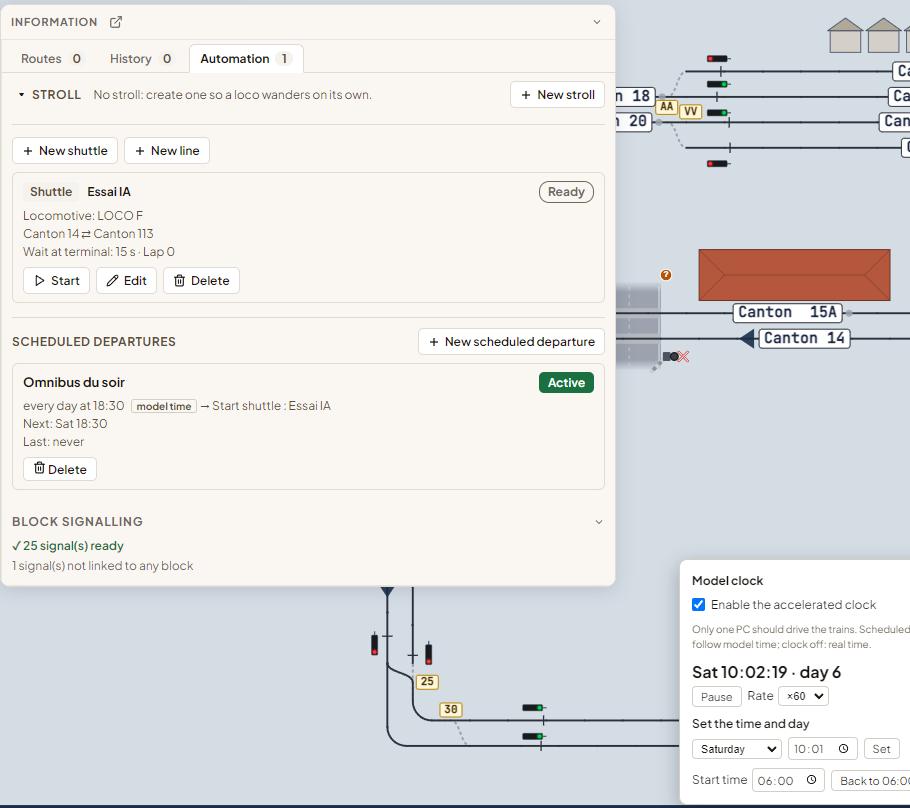
On a model railway the distances are short, but an hour is still an hour. To run a real day of operations, from the first local train at 6 am to the last one in the evening, you would have to spend the whole day in front of your layout.
The accelerated clock comes with LocoPilote 0.1.57, now being tested by our beta testers before its release to everyone.
This is what modellers asked for most often: a fast clock, like the one TrainController and iTrain users know well. It is now in LocoPilote.
Model time, always in view
Once the clock is enabled, model time is always shown in the bottom bar of the dashboard: day, time and rate, for example "Sat 10:04 ×60". Click it to open the clock panel.
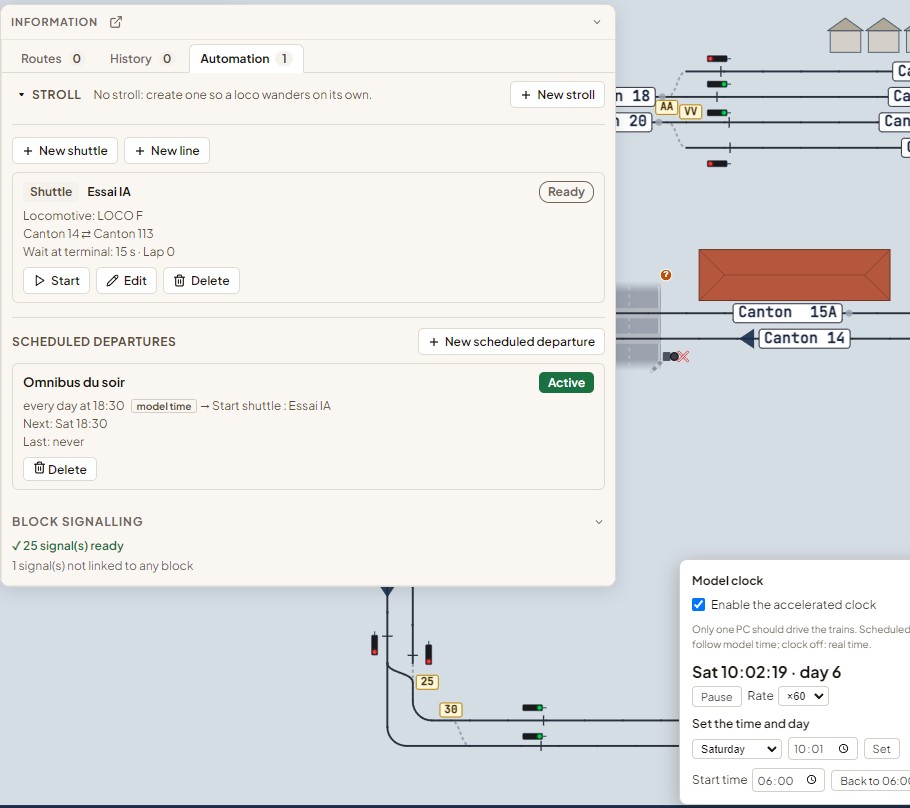
In the panel you can:
- turn the accelerated clock on or off;
- choose the rate: from ×1 (real time) up to ×60 (one model minute per second);
- set the day and time, for example "Saturday, 07:45";
- choose the start time of the day and go back to it in one click (06:00 by default);
- pause the clock and resume it.
At ×60 a whole day goes by in 24 minutes; at the default ×4 rate, in 6 hours.
It stops when your trains stop
If you switch to Freeze, Stop or Emergency, the clock pauses by itself and resumes when you go back to Run. If you pause it yourself with Pause, Run does not restart it: you decide when it goes on.
Departures at model time
When the clock is on, scheduled departures follow model time instead of your computer's time. A departure at 18:30 leaves at 18:30 model time. In the list, each departure is marked "model time", and the next departure is shown with its day.
- Every departure starts with a 10-second countdown you can cancel.
- Nothing leaves while the layout is frozen, stopped or in emergency.
- If you move the clock forward by hand, the departures you skipped do not all leave at once: they are recorded as skipped, with the reason.
- If you turn the clock off, departures go back to the computer's time.
It picks up where you left off
Model time is saved: close LocoPilote on a Saturday at 14:20 model time, and your next session resumes at 14:20. It is also saved with your layout, so you find it on another PC.
The clock is meant for one PC driving the trains. If LocoPilote is open on two computers at the same time, the last saved time wins.
How to turn it on
- Click the clock in the bottom bar of the Dashboard (or open Settings, automatic running section).
- Tick Enable the accelerated clock.
- Choose the rate, then the day and time.
- Switch the layout to Run: the clock starts.
The accelerated clock is included in every plan. Scheduled departures are part of the Pro and Club plans.
Haven't tried LocoPilote yet? Getting started with LocoPilote takes you from installation to your first running train, even without a command station.
TrainController and iTrain are trademarks of their respective owners. LocoPilote is not affiliated with either of them.

Frédéric
Creator of LocoPilote
Developer and railway modeller, creator of LocoPilote. Passionate about automating model railway layouts.
Related articles
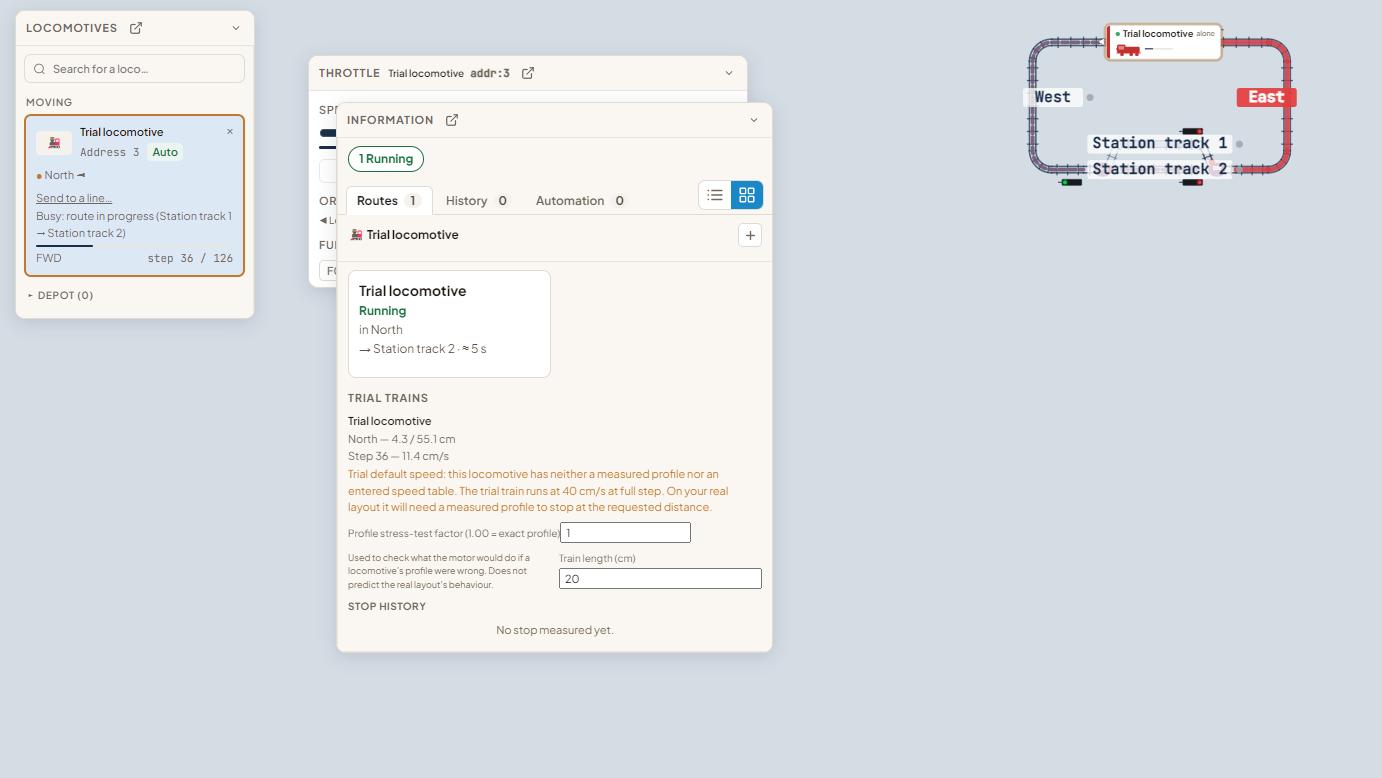
Getting started with LocoPilote: your first train, no hardware needed
From creating your account to a first train stopping at the station: LocoPilote's welcome steps one by one, with no command station or layout connected.
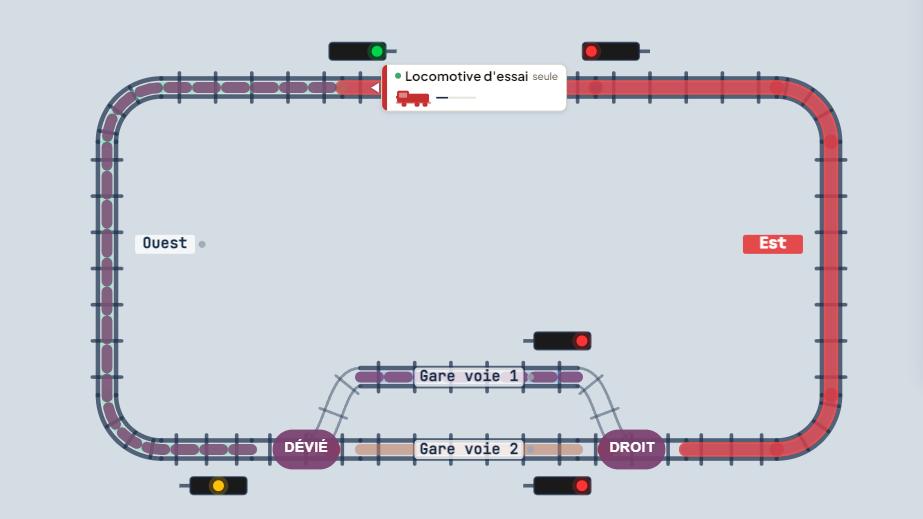
Blocks and detection: stopping a train in the right place with a single detector
One block, one detector, and the train still stops in the middle of the platform: how LocoPilote computes the stop, and what makes it accurate.