Getting started with LocoPilote: your first train, no hardware needed
From creating your account to a first train stopping at the station: LocoPilote's welcome steps one by one, with no command station or layout connected.
Have you just installed LocoPilote, or are you still making up your mind? To try it out you need neither a DCC command station nor a layout. The software has a trial mode: trains run on screen and nothing is sent to the track.
This guide follows a brand-new account from the very first window to a train that goes round the sample plan and stops at the station. Allow a few minutes.
Before you start
- A PC running Windows 10 (64-bit, version 1809 or later) or Windows 11.
- An internet connection to create your account and activate the licence. After that, the software also works offline.
- The installer, available on the Download page.
No command station is needed for this guide.
1. Create your account
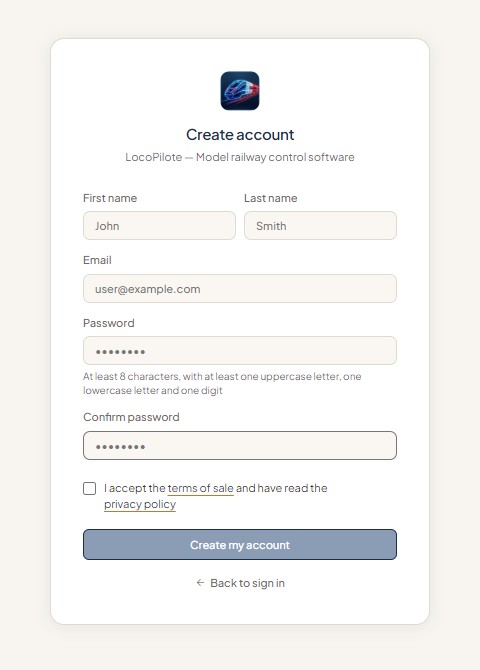
On first launch, LocoPilote asks you to sign in. If you don't have an account yet, create one from the same window: first name, last name, email address and password. Confirm that you accept the terms of sale and have read the privacy policy, then click Create my account.
The language selector in the top right-hand corner of the window offers Français, English and Deutsch.
Your account holds your licence and the synchronisation of your data.
2. The welcome steps
Four short screens help you get started. Every choice can be changed later in Settings.
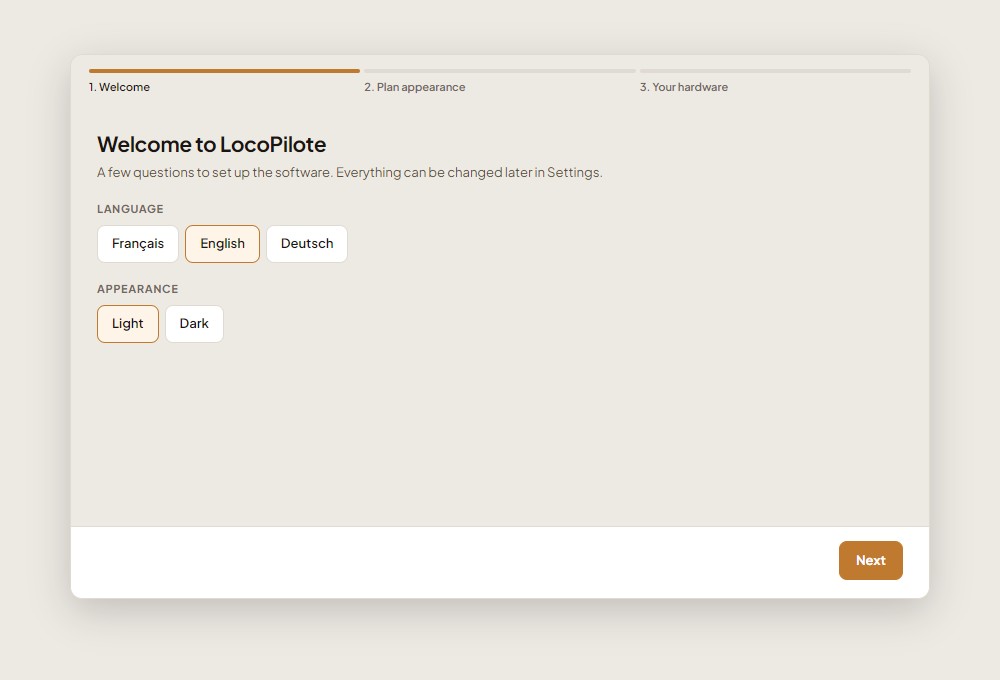
Language and appearance
Choose the language of the software (French, English or German) and a light or dark theme.
Layout view
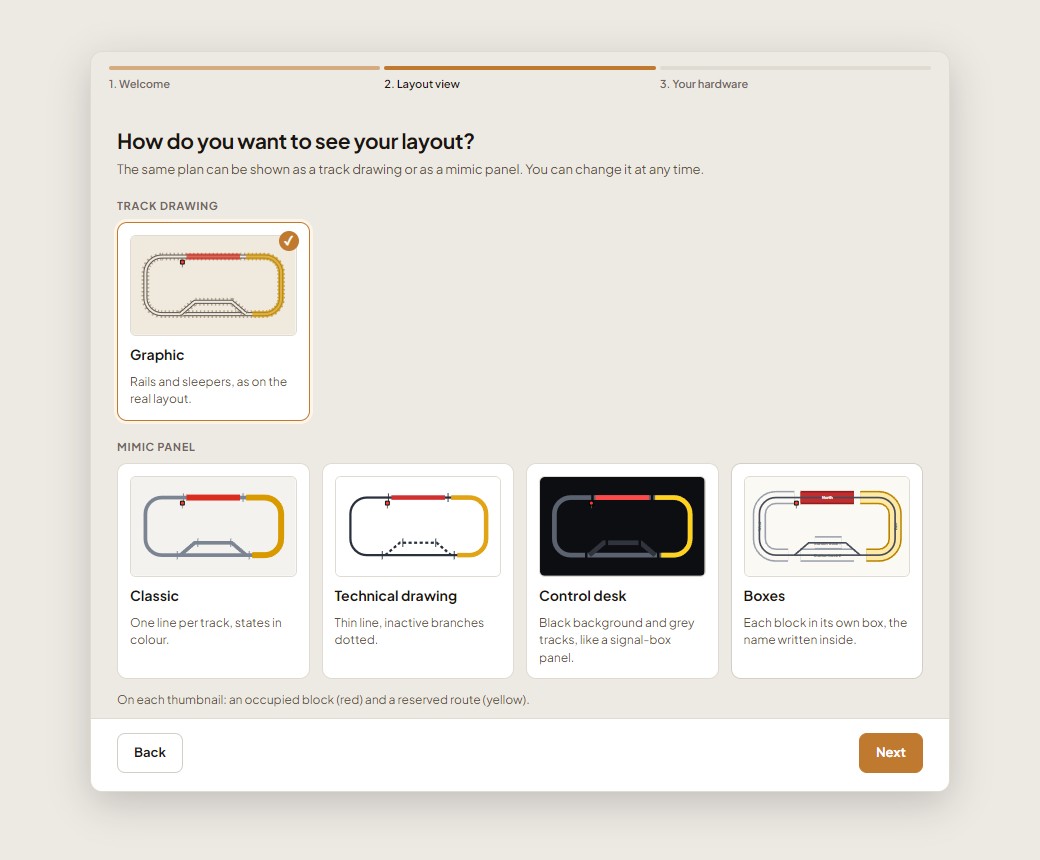
The same plan can be shown in two ways:
- as a track drawing (Graphic view): rails and sleepers, just like on the layout;
- as a mimic panel, in one of four styles: Classic, Technical drawing, Control desk or Boxes.
In this guide we keep the Graphic view. You can switch at any time.
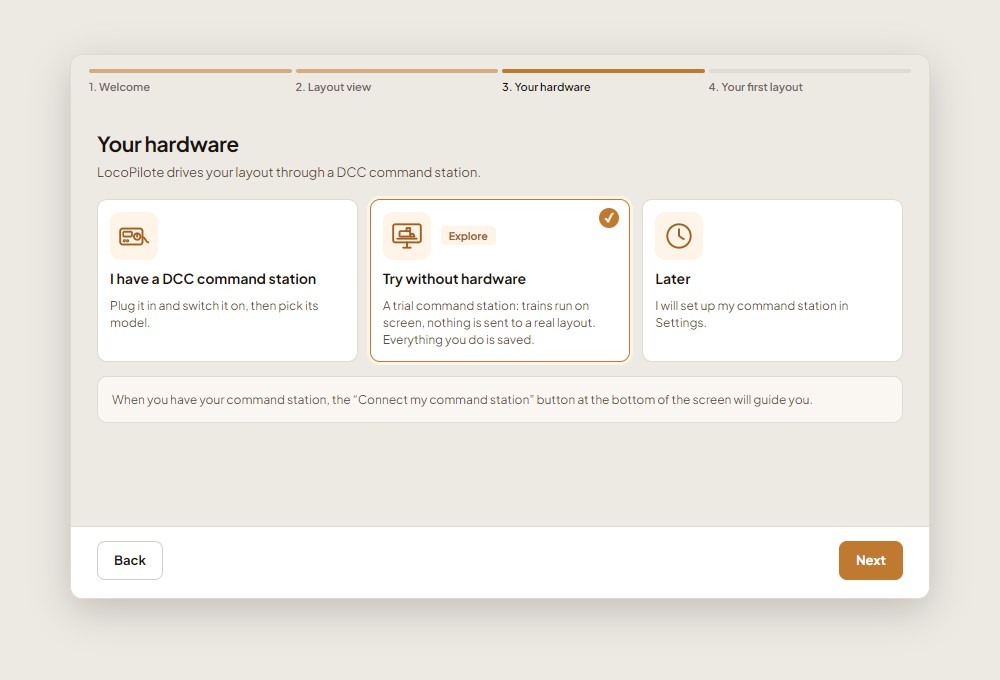
Your hardware
You have three options:
- I have a DCC command station: plug it in, switch it on, then pick its model;
- Try without hardware: a trial command station, trains run on screen;
- Later: you will set up your command station in Settings.
Choose Try without hardware. Everything you do in trial mode is saved: none of your work is lost on the day you connect a real command station.
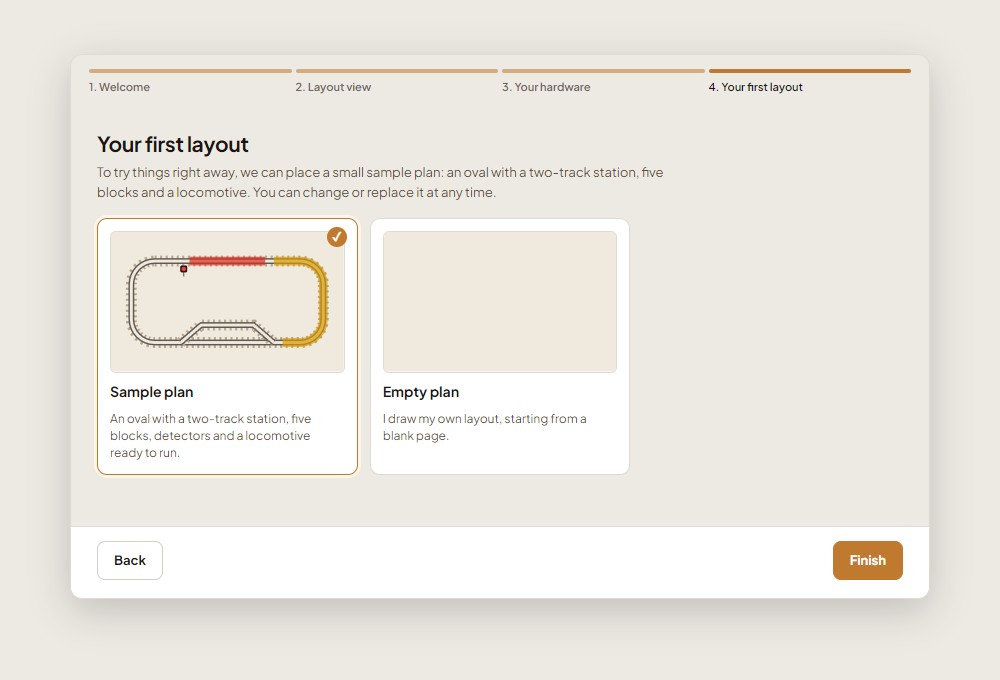
Your first layout
LocoPilote can set up a sample plan: an oval with a two-track station, five blocks, detectors and a locomotive ready to run. You can also start from an empty plan and draw your own layout.
Choose the sample plan, then Finish.
You can still start in trial mode. When you are ready, the "Connect my command station" button at the bottom of the screen will guide you.
3. The beta offer
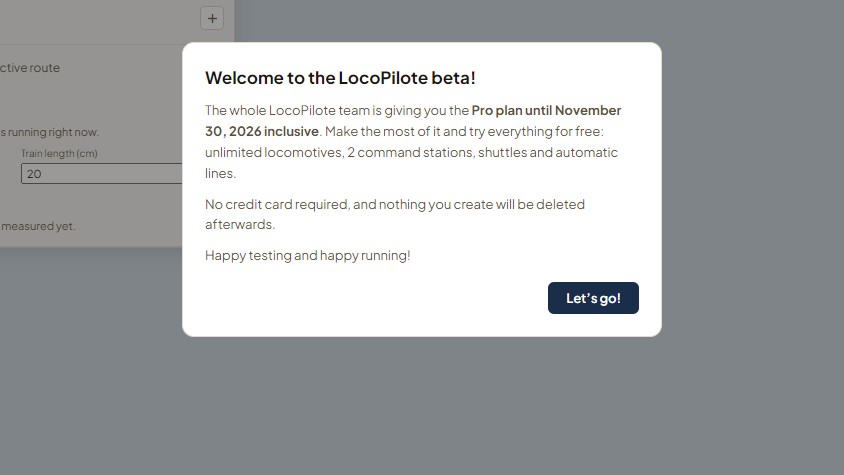
During the beta, a welcome window tells you about it: your account gets the Pro plan until 30 November 2026 inclusive, with no credit card, and nothing you create will be deleted afterwards. Click Let's go!
4. The guided tour
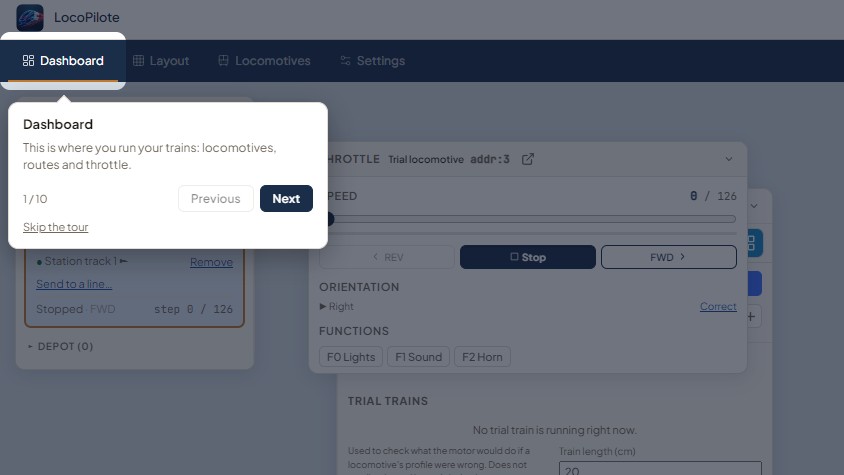
A short guided tour introduces the main screen. Click Next to move on; Skip the tour closes it at any time.
It starts with the four tabs: Dashboard (where you run your trains), Layout (the drawing of your plan), Locomotives and Settings (command stations, appearance and options).
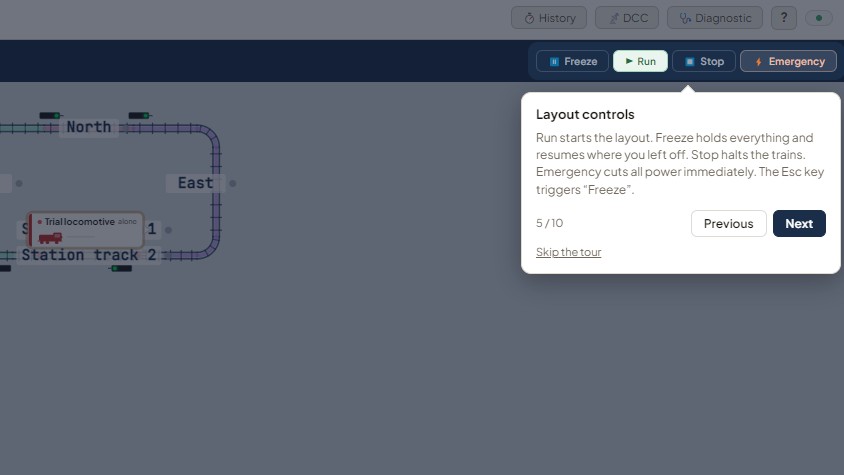
Layout controls
In the top right-hand corner, four buttons control the whole layout:
- Run starts the layout;
- Freeze holds everything and resumes where you left off;
- Stop halts the trains;
- Emergency cuts all power immediately.
The Esc key triggers Freeze: worth remembering.
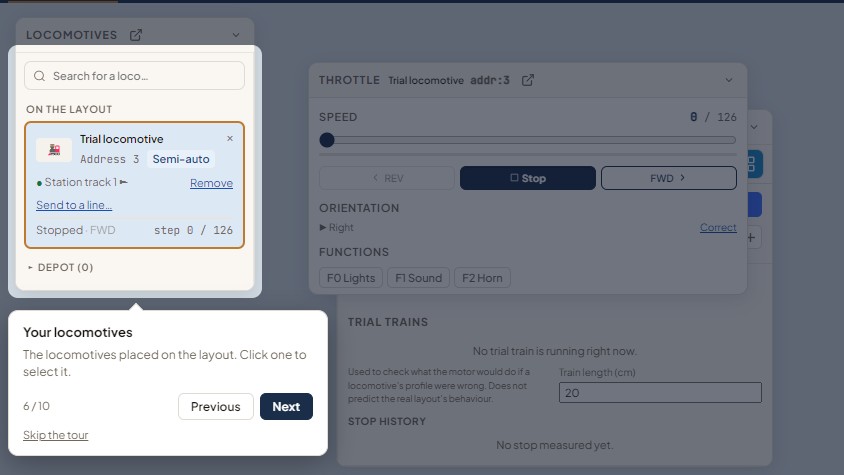
Locomotives
On the left, the Locomotives panel lists, under "On the layout", the locos placed on the plan: click one to select it.
Below it, the depot holds the locomotives you own that are not on the plan yet. When you bring one out, a short wizard asks for the train make-up, the block to place it in and its direction. On the sample plan the trial locomotive is already at the station, so the depot is empty.
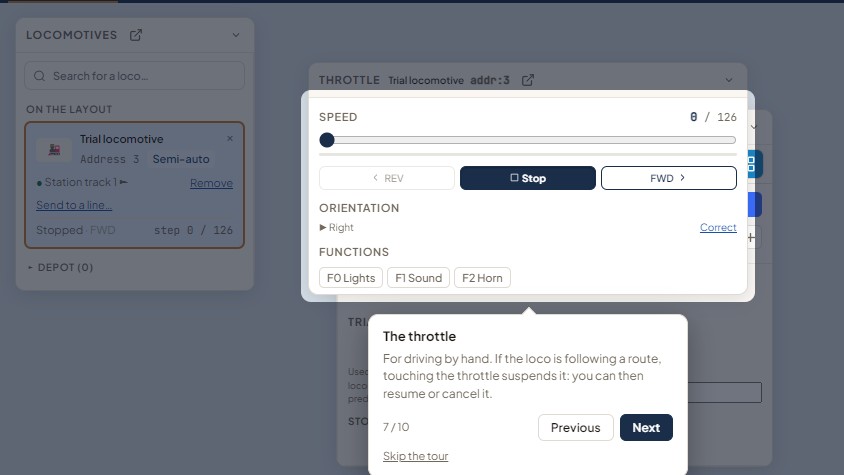
The throttle
The throttle is for driving by hand: speed, direction (REV, Stop, FWD) and functions (lights, sound, horn depending on the loco). If the loco is following a route, touching the throttle suspends it: you can then resume or cancel it.
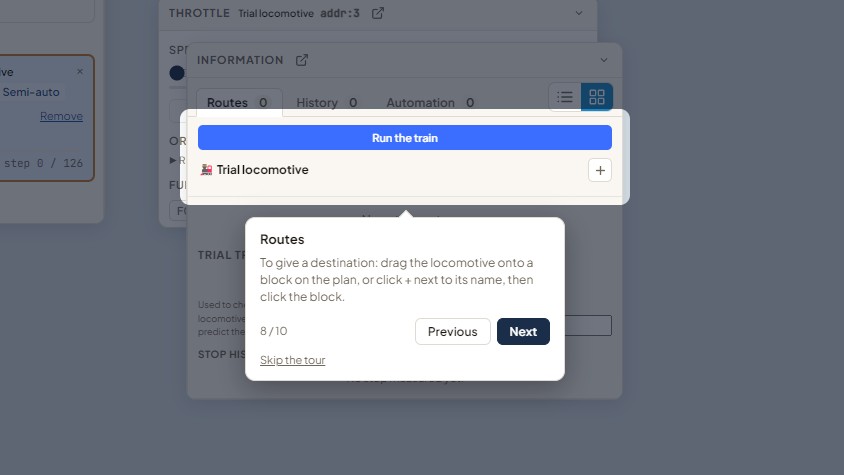
Routes
On the right, the Information panel follows the routes in progress. To give a train a destination, drag the locomotive onto a block on the plan. You can also select it, click + next to its name in this panel, then click the block.
Trial mode
At the bottom of the screen, a banner reminds you that you are in trial mode: nothing is sent to the layout. Next to it, the Connect my command station button will guide you when your hardware is ready.
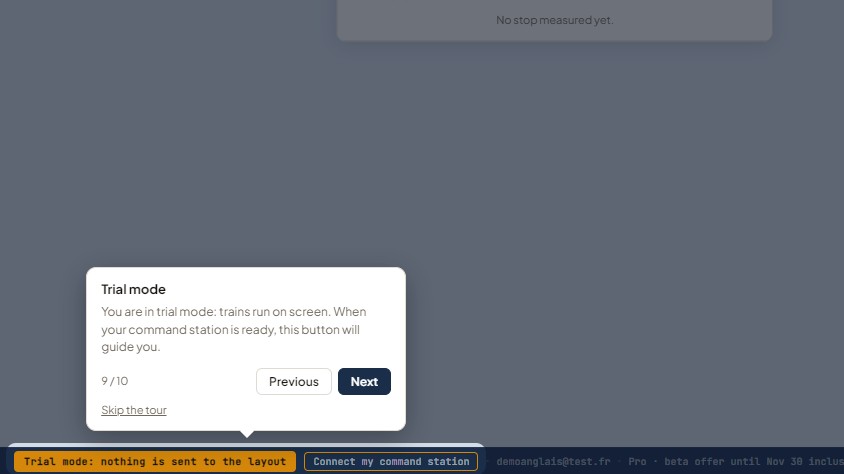
The "?" button in the top right-hand corner of the dashboard lets you restart the guided tour at any time.
5. Run the train
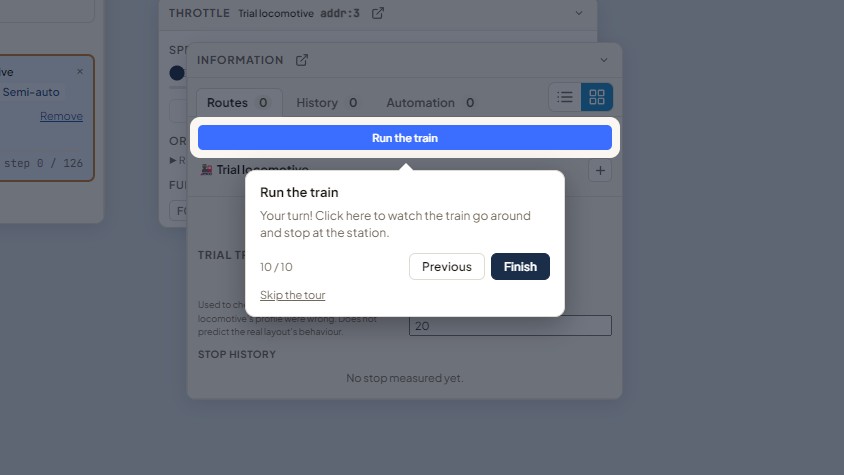
The last step of the tour invites you to click Run the train. This is the moment.
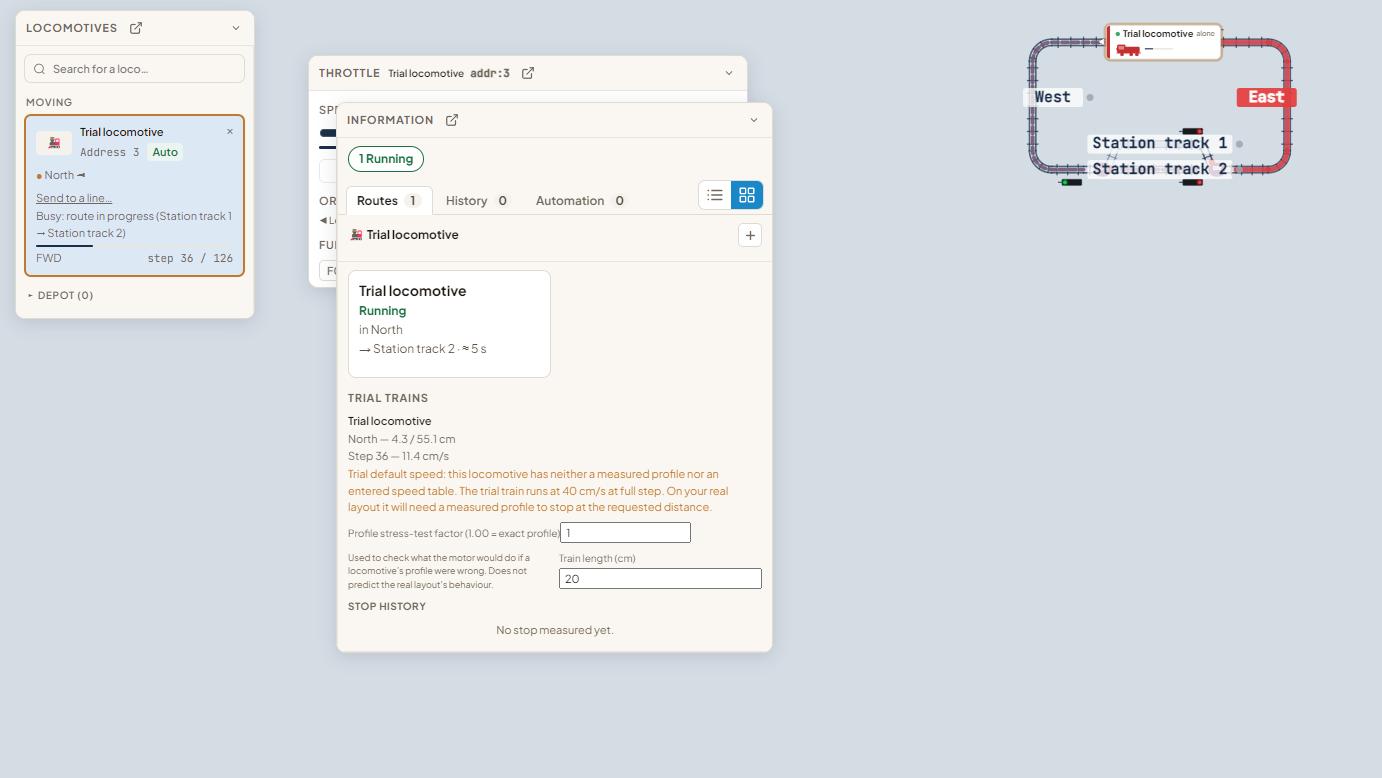
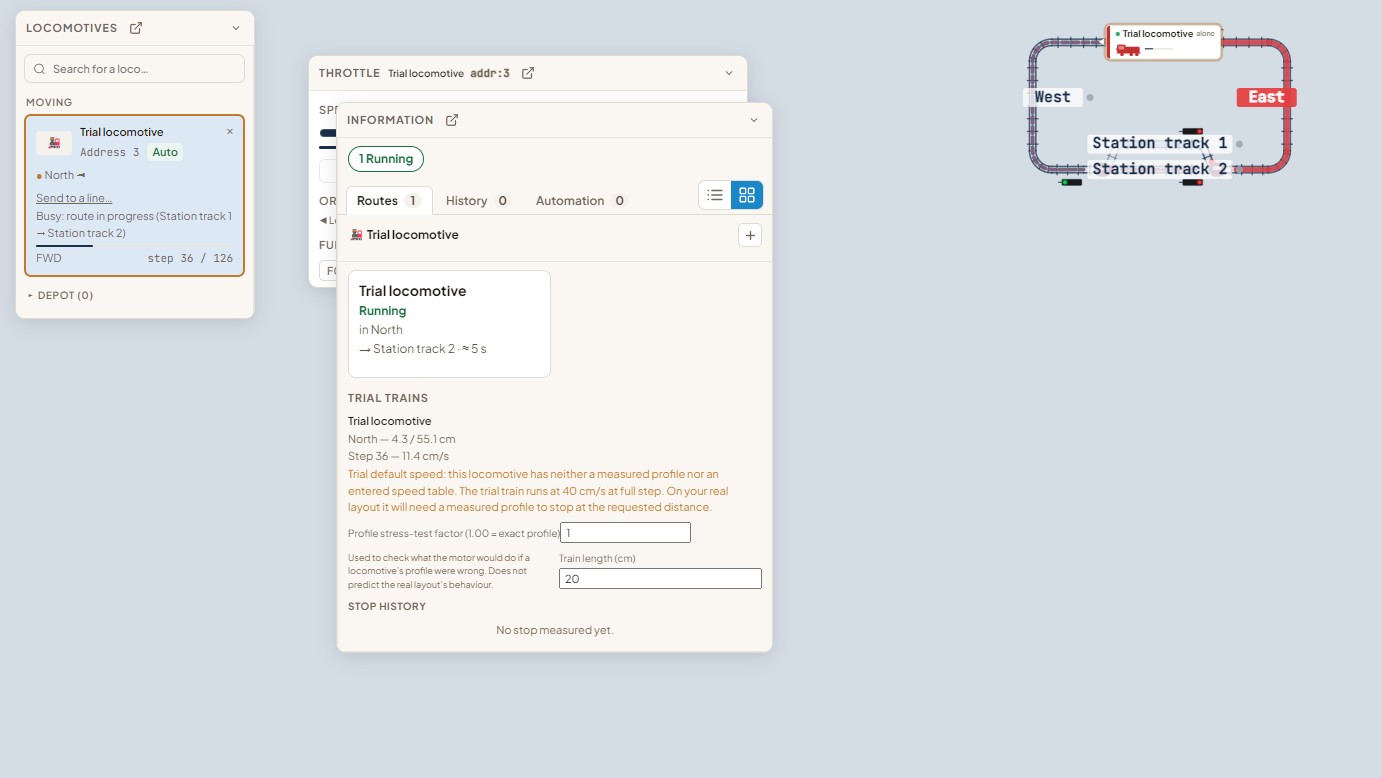
The trial locomotive leaves the station, goes round the oval through the East, North and West blocks, then slows down and stops on the other station track. During the run:
- the plan shows the locomotive's path and its block;
- the Routes tab shows its destination and its status ("Running");
- the throttle shows the requested speed, which drops as the train approaches the station.
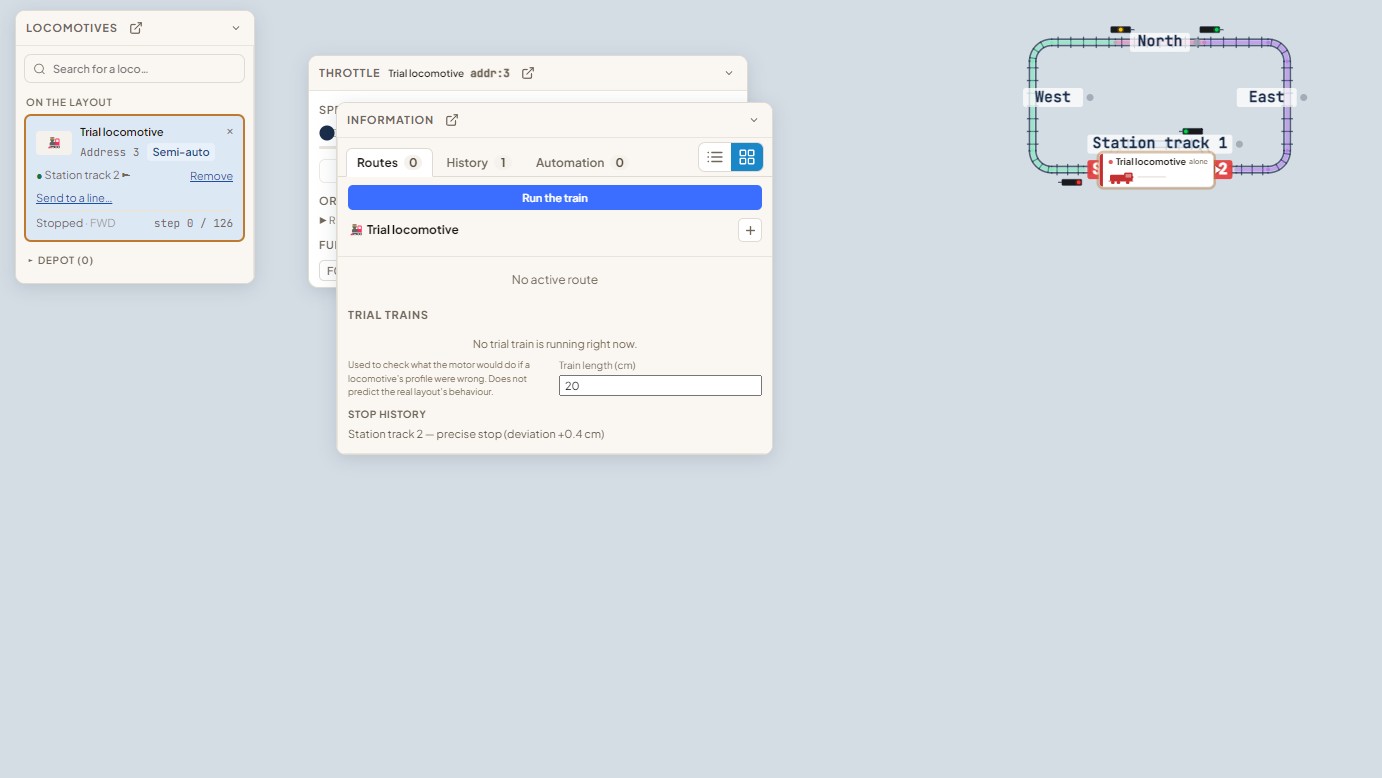
On arrival, the stop history shows where the train stopped compared with the planned stopping point.
In trial mode the locomotive runs at a default speed. On your layout, each locomotive will need a measured speed profile to stop at the requested spot.
What next?
You have now seen the essentials. Depending on what you fancy:
- Connect your command station: the "Connect my command station" button at the bottom of the screen guides you step by step (for example a DR5000 over USB or a Z21 on your local network).
- Draw your layout: in the Layout tab, edit the sample plan or start from an empty plan.
- Add your locomotives: create them in the Locomotives tab with their DCC address, then bring them out of the depot onto the plan.
A question or a problem? The "?" button on the dashboard offers Report a problem: your message comes straight to me, and I usually reply within 24 hours (on working days), in English too.
Happy running!

Frédéric
Creator of LocoPilote
Developer and railway modeller, creator of LocoPilote. Passionate about automating model railway layouts.